XTC Tools VS Code extension
This section contains detailed reference information for the XMOS XTC Tools extension for Visual Studio Code.
Users should start by reading Using Visual Studio Code.
View information
Within the XTC Tools side panel, the extension exposes several views. This section describes what each view is for and how it behaves.
Getting Started view
The Getting Started view is intended to provide quick access to example application notes.
The Download Example Application action opens a list of XMOS application notes that can be downloaded, unpacked, and opened automatically. A broader catalogue is available on the XMOS application notes page.
The Open Existing Application action is a shortcut for opening application source that is already present on the local machine. It is equivalent to the built-in File => Open Folder workflow in VS Code.
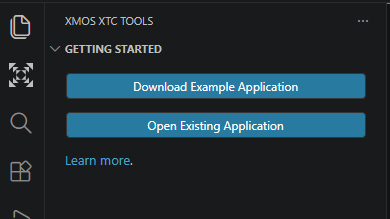
Fig. 28 The Getting Started view
XTC Tools view
The XTC Tools view provides the main actions for interacting with the active XTC Tools installation.
The selected XTC Tools version is shown in the header. The Configure Global XTC Tools header action changes the globally selected installation.
The selected tools path is stored in xtc-tools.toolPath.
All of the buttons in this view are backed by commands, so they can be invoked from the command palette or bound to keys. See Commands for more information.
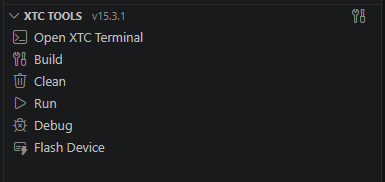
Fig. 29 The XTC Tools view
Open XTC terminal
This action opens a new XTC Terminal in the VS Code terminal area.
That terminal presents the XTC Tools command prompt, so XMOS command-line
tools such as xcc are available.
The XTC terminal profile can also be selected from the built-in terminal UI using the “New Terminal” button in the Terminal tab.
To make it the default terminal profile, set one of the following settings to
"XTC Terminal" depending on platform:
terminal.integrated.defaultProfile.windowsterminal.integrated.defaultProfile.osxterminal.integrated.defaultProfile.linux
The default terminal profile can also be set using the “Select Default Profile” action in the terminal dropdown menu.
Build
This action runs the build task for the workspace. By default it builds the currently selected build configuration using XCommon CMake.
The default action respects the settings xtc-tools.buildDirectory,
xtc-tools.skipConfigure, and xtc-tools.numberOfBuildJobs.
Right-clicking this action provides a full rebuild option.
This action is configurable. If tasks.json defines an
xtc-tools.script task with "purpose":
"build", that task is used instead of the built-in default.
Clean
This action runs the clean task for the workspace. By default it runs the build-system clean step and removes built objects and executables without deleting the entire build system.
The default action respects xtc-tools.buildDirectory.
Right-clicking this action provides a full clean option that also deletes the build directory. Deleting the build directory can reduce the quality of IntelliSense information until the project is configured again.
This action is configurable. If tasks.json defines an
xtc-tools.script task with "purpose":
"clean", that task is used instead of the built-in default.
Run
This action runs the selected application on the selected device. By default it uses the current selection from the Devices view and the current selection from the Build Configurations view. If either selection is missing and multiple choices are available, the extension prompts for a selection.
Semihosted output from the application is shown according to
xtc-tools.runOutputLocation.
The default run action respects xtc-tools.runOutputLocation and
xtc-tools.buildBeforeRun.
This action is configurable. If launch.json defines an
xtc-tools.xrun launch configuration, that configuration is
used instead of the built-in default.
Debug
This action runs the selected application on the selected device in debug mode. By default it uses the current selection from the Devices view and the current selection from the Build Configurations view. If either selection is missing and multiple choices are available, the extension prompts for a selection.
Semihosted output from the application is shown according to
xtc-tools.runOutputLocation. Debug controls are exposed in the VS Code UI,
and an XGDB-backed session is started.
The default debug action respects xtc-tools.runOutputLocation and
xtc-tools.buildBeforeRun.
This action is configurable. If launch.json defines an
xtc-tools.debug launch configuration, that configuration
is used instead of the built-in default.
Flash device
This action programs the flash of the selected device with the selected application and then reboots the target, so that the application starts running. By default it uses the current selection from the Devices view and the current selection from the Build Configurations view. If either selection is missing and multiple choices are available, the extension prompts for a selection.
Warnings reported during flashing are shown in the UI and can be allowed once or suppressed for future identical warnings.
This action respects xtc-tools.warningPolicies and
xtc-tools.buildBeforeRun.
This action is configurable. If tasks.json defines an
xtc-tools.flash task with "purpose": "flash",
that task is used instead of the built-in default.
Build Projects view
The Build Projects view contains the projects available in the currently open workspace.
This view is closely linked to the Build Configurations view and is intended for XCommon CMake projects.
The view shows a tree of the CMake projects defined in the workspace in a form
that mirrors the filesystem. If xtc-tools.autoSelectRootProject is
true and a CMake project exists in the workspace root, that project is
selected automatically.
The selected project is shown in green with a star icon.
The view header includes a refresh action that re-scans the workspace for projects.
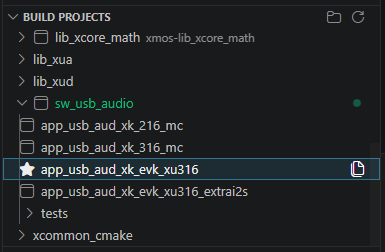
Fig. 30 The Build Projects view
Build Configurations view
The Build Configurations view contains the build configurations available in the currently selected project. Changing the active project changes the list of available build configurations. If no project is selected, no build configurations are shown.
These build configurations are extracted from the build system. See the XCommon CMake build system reference for background on how those targets are modelled.
Selecting a build configuration limits the build to that configuration and sets Run, Debug, and Flash to default to the application associated with it.
The selected build configuration is shown in green with a star icon.
The view header includes a refresh action that re-scans the project for build configurations. This triggers a CMake reconfiguration so the information can be re-extracted.
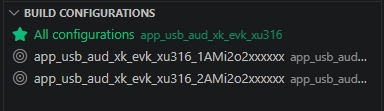
Fig. 31 The Build Configurations view
Devices view
The Devices view contains the connected XTAG debug adapters that can be used to run, flash, and debug applications.
This view does not refresh automatically. The refresh action in the view header scans for device presence changes.
In-use devices are marked with a spinning indicator if they are being used by the current VS Code instance, or with a padlock if another application is using them.
Clicking a device selects it. The selected device is used as the default target for Run, Debug, and Flash actions and is shown in green with a star icon.
The adapter ID is a unique serial number for the XTAG debug adapter. Each
device can be given a friendly name from the right-click menu or by setting
xtc-tools.deviceAliases.
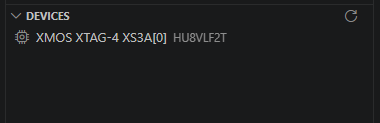
Fig. 32 The Devices view
IntelliSense
If the Microsoft C/C++ extension (ms-vscode.cpptools) is installed, the XTC
Tools extension provides the selected project and build configuration details to
the IntelliSense engine. See the Build Configurations view.
This allows IntelliSense to see xcore system libraries, definitions and include
paths from the build system, and generated headers such as platform.h and
xscope.h.
That information enables features such as Go to Definition, hover help, preprocessor expansion, and inactive-code dimming.
The IntelliSense integration applies to C and C++ files. XC files are not understood by the C/C++ IntelliSense engine.
XE file viewer
The extension provides a custom viewer for .xe executable files, which displays the disassembly
and other information about the executable in-editor. To use it, simply open a .xe
file in the editor by double-clicking it in the Explorer view.
The drop-down at the top of the view can be used to swap between the various modes of operation, such as disassembly and symbol listing.
This graphical tool is the equivalent of the command-line xobjdump tool.
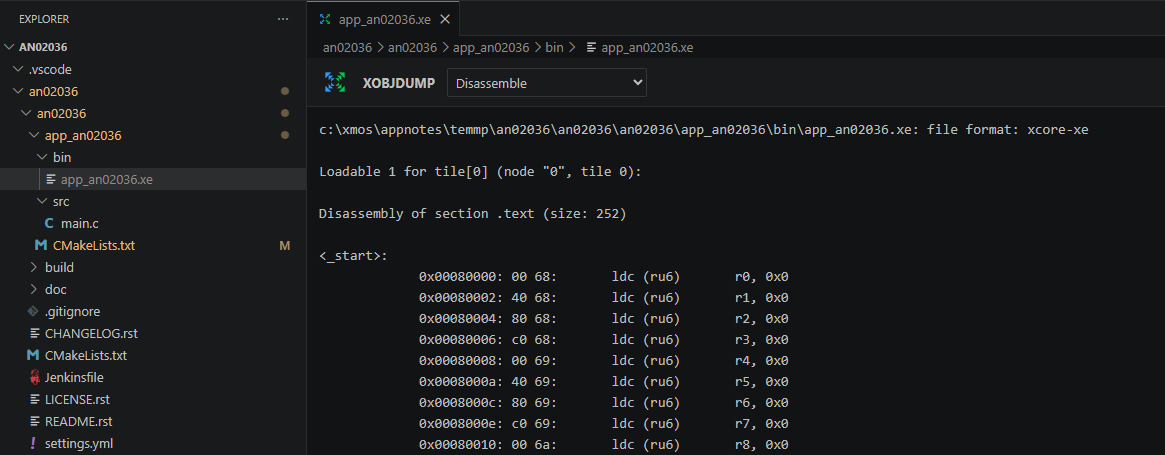
Fig. 33 The XE file viewer
Tasks
The XTC Tools extension contributes task types that can be defined in
tasks.json. These tasks can replace the default Build, Clean, and Flash
behaviour from the XTC Tools view or be used independently.
VS Code can populate tasks.json from templates by running Tasks: Configure
Task and selecting an xtc-tools template.
Command substitutions can be used in these tasks to fill in values such as the selected project directory or build configuration.
See the VS Code tasks documentation for more detail on the task system.
xtc-tools.script
This task type runs an array of commands in the XTC terminal environment. It is
intended for commands that are available from the XTC Tools command prompt,
such as xcc or xsim.
Example task configuration:
{
"type": "xtc-tools.script",
"commands": [
"xsim hello.xe",
"echo hello.xe has been run"
],
"workingDirectory": "${workspaceFolder}/hello",
"purpose":
"build"
}
Property |
Type |
Required |
Description |
|---|---|---|---|
|
string |
Yes |
Must be |
|
array |
Yes |
Commands to execute in the XTC terminal. |
|
string |
No |
Working directory for the commands. Defaults to the workspace root. |
|
string |
No |
Purpose of the task. The task schema accepts |
The built-in Build task also adds the $xcc and $xcommonCmake problem
matchers so warnings and errors appear in the VS Code Problems view.
xtc-tools.flash
This task type programs an application to a flash device and then reboots the target, so that the application starts running.
Example task configuration:
{
  "type": "xtc-tools.flash",
  "executable": "",
  "adapterId": "",
  "purpose": "flash",
  "buildFirst": true
}
Warnings reported by the flash tool are presented in the UI as a pop-up. Choosing Continue
and don’t show again stores the exact warning text in the
xtc-tools.warningPolicies setting so subsequent flash operations continue automatically for that
warning. To reset this behaviour, remove the relevant entries from the xtc-tools.warningPolicies
setting using the VS Code settings menu.
Property |
Type |
Required |
Description |
|---|---|---|---|
|
string |
Yes |
Must be |
|
string |
Yes |
Path to the |
|
string |
Yes |
Adapter ID of the device to flash, or blank to use the current device selection logic. |
|
string |
No |
Purpose of the task. The allowed value is |
|
boolean |
No |
Whether to run the current build task before flashing. Defaults to
|
Launch configurations
The XTC Tools extension contributes launch configuration types for
launch.json. If you define a launch configuration with type
xtc-tools.xrun or xtc-tools.debug, the Run or Debug action in the
XTC Tools view uses that definition instead of the built-in
default.
VS Code can populate launch.json from templates by using Add
Configuration in the editor and selecting an XMOS launch template.
Command substitutions can also be used in launch
configuration fields such as executable paths, adapter selection, and
preLaunchTask values.
See the VS Code launch configuration documentation.
xtc-tools.xrun
This launch configuration runs a .xe on the target without starting a debug
session.
Property |
Type |
Required |
Description |
|---|---|---|---|
|
string |
Yes |
Must be |
|
string |
No |
Launch request type. Must be |
|
string |
No |
Path to the |
|
string |
No |
Adapter ID of the device to run on. If omitted, the extension uses the currently selected device. |
xtc-tools.debug
This launch configuration starts an XGDB-backed debug session on the target device.
Property |
Type |
Required |
Description |
|---|---|---|---|
|
string |
Yes |
Must be |
|
string |
No |
Launch request type. Must be |
|
string |
No |
Path to the |
|
string |
No |
Adapter ID of the device to debug on. If omitted, the extension uses the currently selected device. |
Commands
All buttons which are accessible via the GUI are backed by commands, which can be invoked via the command palette or keybindings.
Command ID |
Title |
Description |
|---|---|---|
|
Configure Global XTC Tools |
Opens a quick-pick prompting for a globally configured XTC Tools path. |
|
Configure Local XTC Tools |
Opens a quick-pick prompting for a workspace-local XTC Tools path. |
|
Open XTC Terminal |
Opens a terminal using the currently selected XTC Tools environment. |
|
Build |
Runs the active build task. |
|
Clean |
Runs the active clean task. |
|
Delete Build Directory |
Deletes the configured build directory. |
|
Rebuild |
Deletes the build directory and then builds again. |
|
Clean and Delete Build Directory |
Runs clean and then deletes the build directory. |
|
Run |
Runs the selected application on the selected device with no debug. |
|
Debug |
Runs a debug session for the selected application on the selected device. |
|
Flash Device |
Programs the flash of the selected device with the selected application. |
|
Refresh Devices |
Refreshes the connected device list. |
|
Choose Active Device |
Opens a quick-pick prompting for the active device selection. |
|
Refresh Build Projects |
Re-scans the workspace for supported projects. |
|
Refresh Build Configurations |
Re-configures the selected project and refreshes the available build configurations. |
|
Choose Active Project |
Opens a quick-pick prompting for the active project selection. |
|
Get Extension Diagnostic Information |
Prints extension and workspace diagnostics to the XMOS output channel. |
|
Create New Application from Example |
Opens a quick-pick of application notes which can be automatically downloaded and opened. |
Command substitutions
The following commands are intended for usage with VS Code substitution syntax inside tasks and launch configuration definitions.
Substitution |
Returned value |
|---|---|
|
The effective value of |
|
The value of |
|
The directory containing the selected project’s |
|
The name of the selected build configuration, or an empty string if no build configuration is selected. |
|
|
Settings
The extension contributes the following settings.
Settings can be configured at either the user level or the workspace level. For user settings, its possible to use the ‘Profiles’ feature of VS Code to have different configurations for different VS Code profiles.
Setting |
Type |
Default |
Description |
|---|---|---|---|
|
string |
|
Path to the active XTC Tools installation directory. |
|
string |
|
Build directory path, relative to the selected project directory. |
|
string |
|
Prefix returned by |
|
array |
|
List of flash warning strings that should automatically continue without
showing the modal warning prompt. This setting is updated automatically
when the user chooses |
|
object |
|
Mapping from adapter ID to a friendly device name shown in the Devices view. |
|
string |
|
Controls where target application stdout/stderr is shown during Run and
Debug. Allowed values are |
|
integer |
|
Number of parallel jobs used by the default build task. A value of |
|
boolean |
|
Whether a supported project in the workspace root should be auto-selected when the workspace is opened. By disabling this setting, projects in the workspace root will not be automatically configured unless explicitly selected by the user. |
|
boolean |
|
Whether implicit Run, Debug, and Flash actions should build first.
Custom launch and task definitions can override this with
|
Theming
The extension contributes theme colours that are used to colour certain UI elements such as the selected item in the Devices view.
They can be overridden in the active theme or via
workbench.colorCustomizations.
Colour ID |
Default value |
Used for |
|---|---|---|
|
|
Highlighting the selected project, build configuration, or device. |
|
|
Colouring the star icon shown for selected items. |
Syntax Highlighting
The extension contributes syntax highlighting for XC files (xc) and XCORE assembly files (xcore-assembly).
By default, these syntax highlighters are enabled for files with the extensions .xc and .S respectively,
but other extensions or user settings can override this. The Change Language Mode action in the VS Code command
palette can be used to change the language mode of a file to use these syntax highlighters.